9 Steps to Designing Website CTA Buttons That Get More Clicks

Jerome Tana
13 สิงหาคม 2568

Table of Contents
You might think a CTA (Call-to-Action) is just a "button," but in reality it's the single most important decision point on your page. Get it wrong, and no matter how good your content and offer are, people still won't click.
In this article, we'll start from a not-so-great CTA and gradually improve it point by point together.
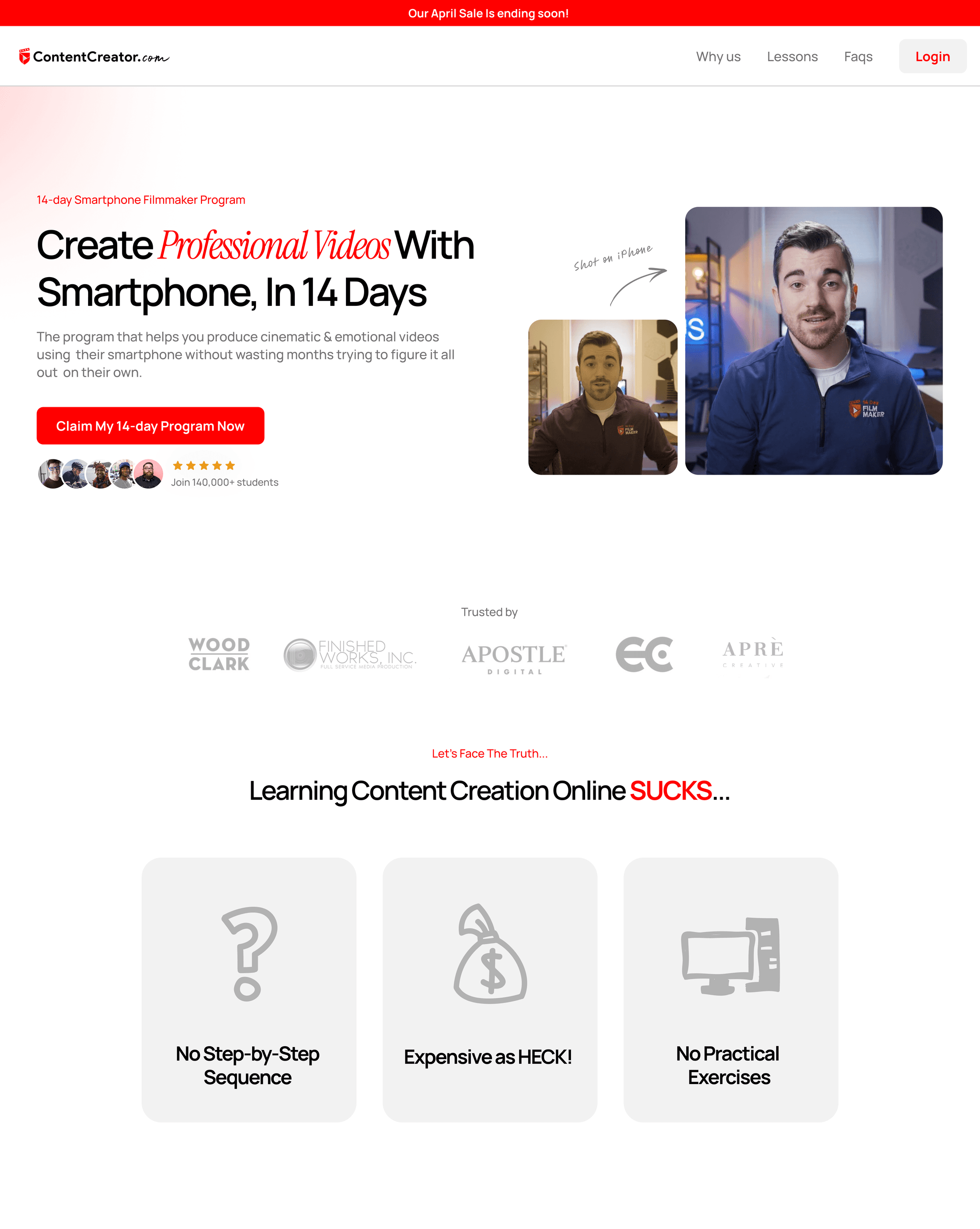
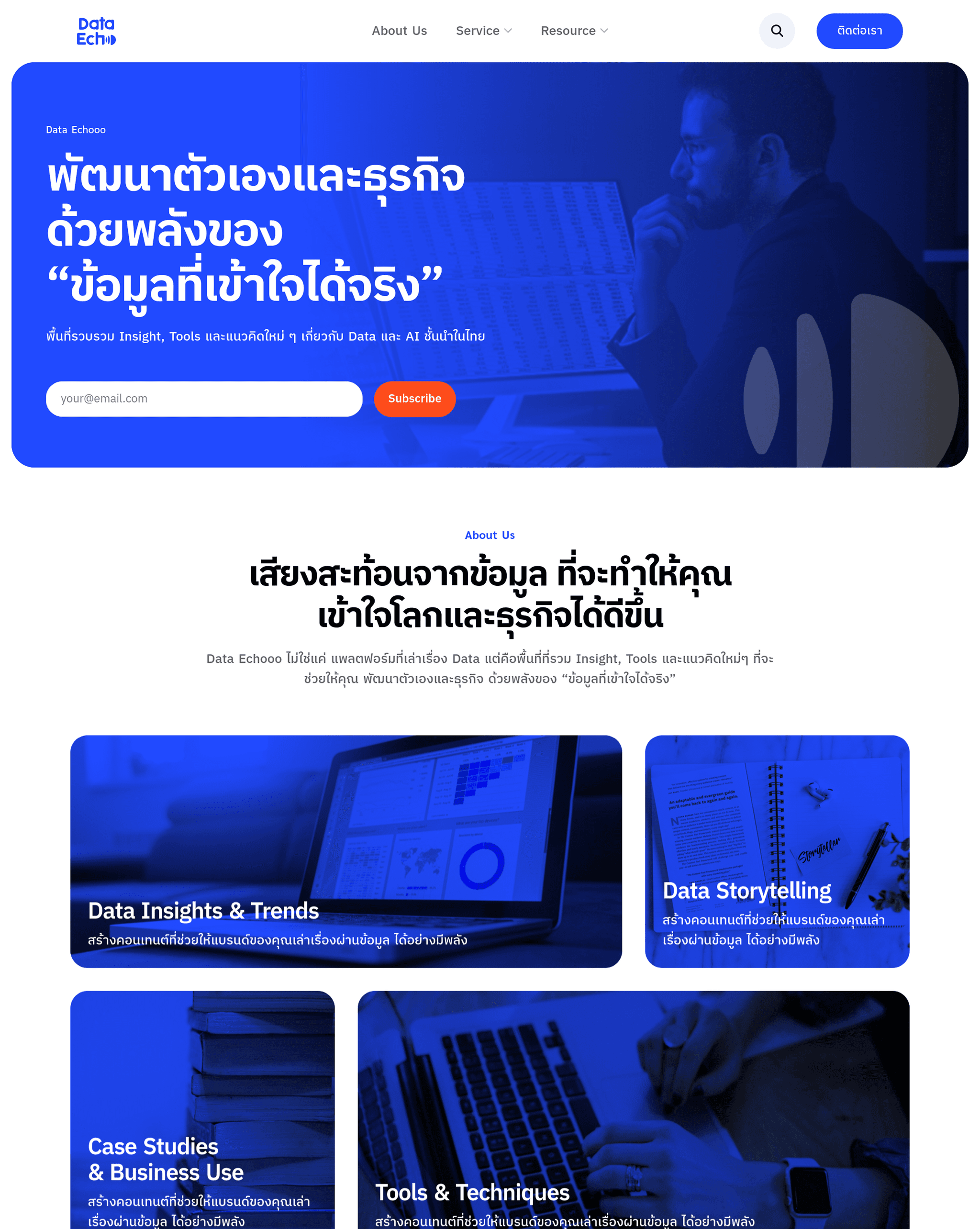
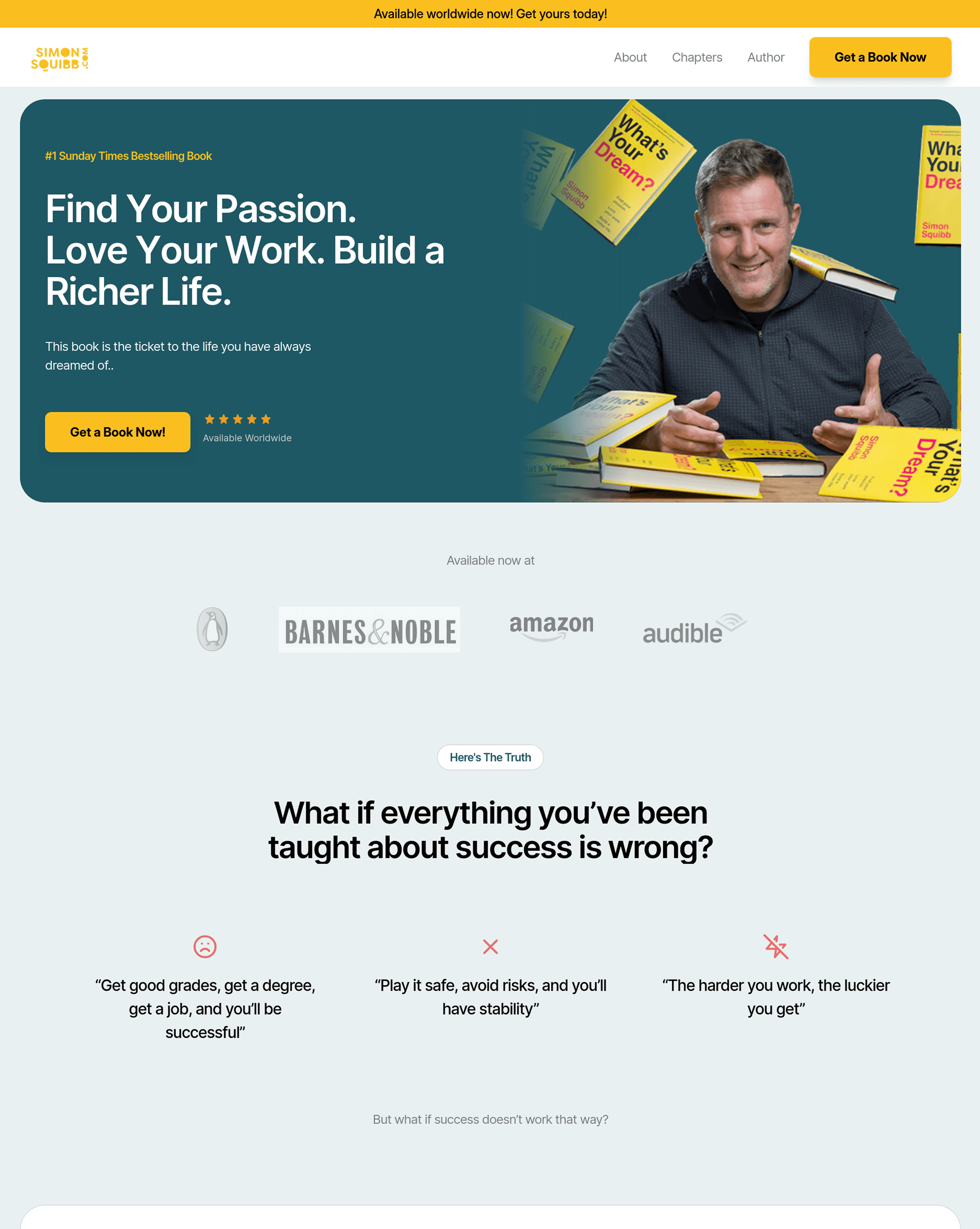
This is our starting CTA button, the one we'll gradually transform into a perfect CTA by the end.

1. Copy — use result-focused wording
Imagine walking into a store and a staff member hands you a paper to sign without telling you what you'll get afterward. How would you feel? That's exactly how users feel when they see a button that says "Submit" — it's cold, it's the language of a system, not of a real person, and most importantly it doesn't tell you what will happen when you click.
The fix is to change the button text into action words that clearly state the benefit, such as:
- "Start your free trial"
- "Download the free guide"
- "Reserve your seat"
This way users decide to click because they know what they're about to get, not because they're being ordered to click.

2. Color — use a color that catches the eye
A CTA button in a pale gray that looks disabled is like a signpost so faded you can barely read it; no one pays attention, and some people may even think it can't be clicked.
The solution is to choose a color that contrasts with the background and conveys the emotional meaning you want, for example:
- Green: safety, confirmation
- Orange: energy, stimulation
- Red: urgency (use with care)
A high-contrast color lets the brain know instantly, "this is the point worth paying attention to."

3. Size & Shape — big and easy to tap
On mobile, a tiny button you have to zoom in to tap is like grabbing a small coin while wearing thick gloves — difficult and frustrating.
The fix is to make the button at least 44px tall for touchscreens, use rounded corners so it feels friendly, and clearly separate the button from other elements. The moment people see it, they'll instantly feel "this one is definitely clickable."

4. Placement — put it at the decision moment, easy to see
If your main CTA sits at the end of a 3,000-word page, it's like setting up a water stand at the finish line of a marathon; most people will never make it that far.
You should place the main CTA in the hero section so it's visible from the start, and reinforce it with repeat CTAs in the middle of the content and at the end of the page, so the button is there at the moments users are genuinely ready to decide.

5. Sticky CTA — make it always ready to tap
On mobile, when the CTA button scrolls off screen, users have to scroll back up to find it, like having to walk back upstairs for something you forgot — it wastes energy and breaks the momentum.
The fix is a sticky CTA bar at the bottom of the mobile screen, or on the navigation bar, such as "Book now" or "Chat with us," that stays right next to the user at all times, reducing steps and letting them tap instantly.

6. White Space — add room around the button
A button crammed up against long text until it blends in is like a poster where the letters are all jammed together — it tires the eyes and you can't tell what's important.
Leave margin and padding around the CTA to create breathing space, making the button stand out and contrast with its surroundings. It's this empty space that lets the user's eyes rest and focus on the button.

7. Visual Cue — a button with something pointing the way
A CTA button just floating on its own can get overlooked without anyone realizing it, because nothing says "this is the important thing here."
We can use an arrow, a leading line, or a person in the hero image looking toward the button. This taps into the brain's natural tendency to follow the direction it sees, making users focus on the CTA automatically.

8. Urgency & Scarcity — from "Sign up now" to "Sign up within 24 hrs"
A CTA button with no impetus is like inviting a friend out and saying "go whenever you want" — the result is that no one is in a hurry.
Add urgency or scarcity, such as:
- "Sign up within 24 hrs to get a bonus"
- "Only 3 seats left"
This triggers FOMO (Fear of Missing Out), making users feel they need to decide quickly.

9. Trust Signals — add proof of credibility
Some users hesitate to click because they fear the risk, for example not being sure they'll get what they expect.
The fix is to add trust signals, such as a padlock icon, the text "Your data is secure," or "Cancel anytime," to confirm safety and reduce the user's worries.

Designing a CTA isn't just about "making it pretty," it's about removing every point that makes users hesitate, one by one. If you cover all 9 points, your CTA won't just be a button, it'll be an accelerator that sends your conversions soaring.
แชร์บทความนี้

Written by Jerome Tana
Author at WEBCRAFTSMAN
Jerome Tana is a dedicated member of the WEBCRAFTSMAN team, specializing in web development, digital marketing, and creating exceptional user experiences.